
GEM-CAR FAQ
Customize Inspections - Inspections Editor menu
In your GEM-CAR, you can create and customize inspections according to your workshop's needs.
If you click on Vehicles > Inspection Editor > Inspections, you'll get a list of inspections.
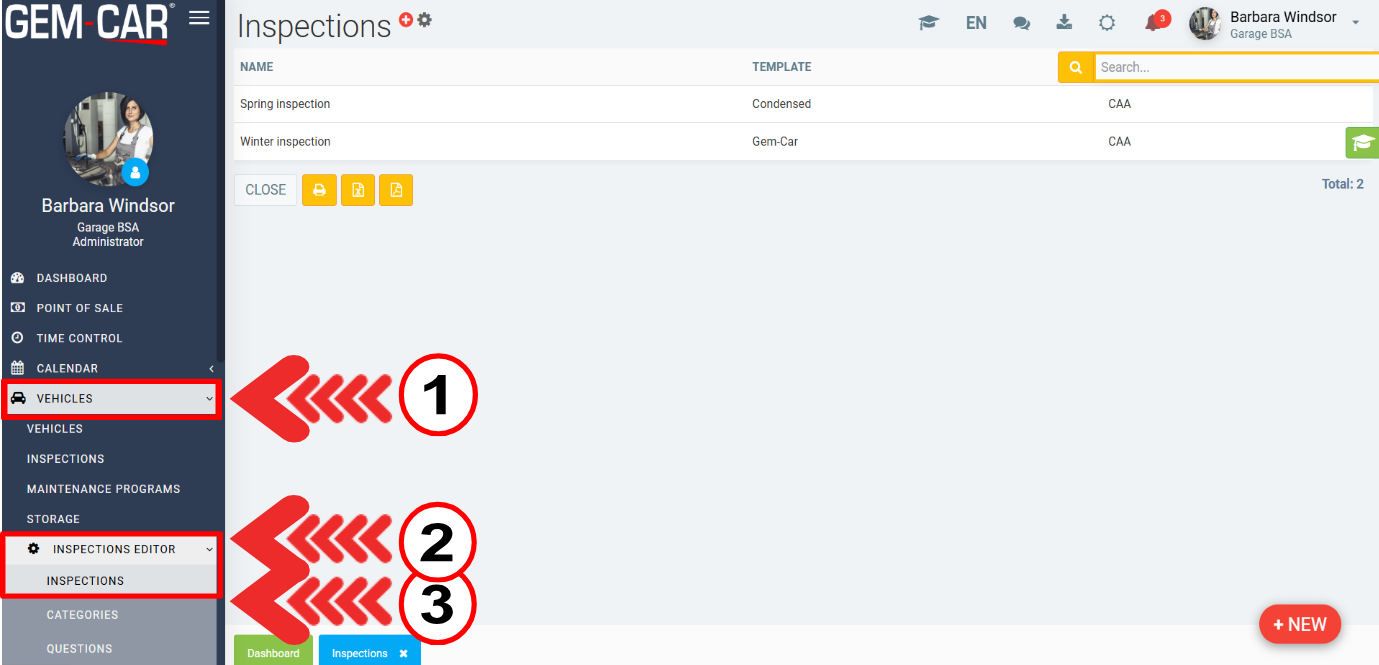
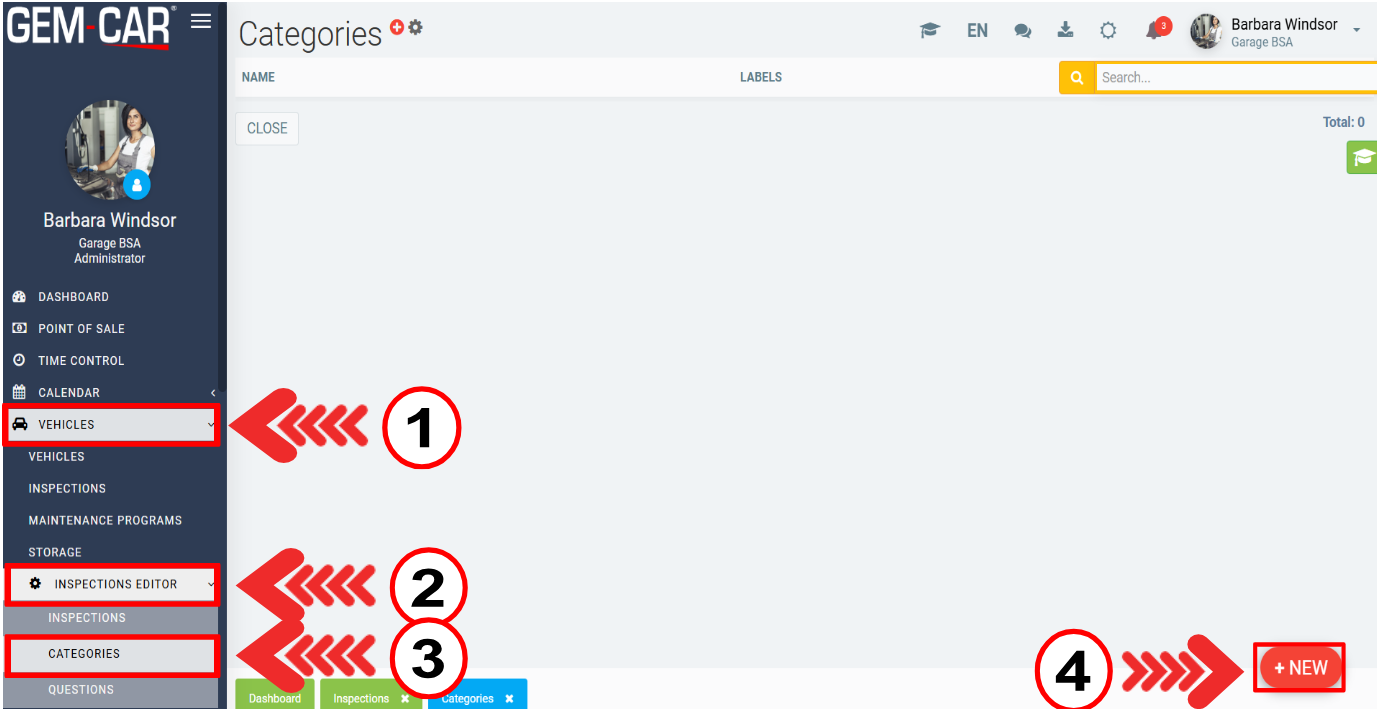
If you wish to create a new inspection category, click on +New.
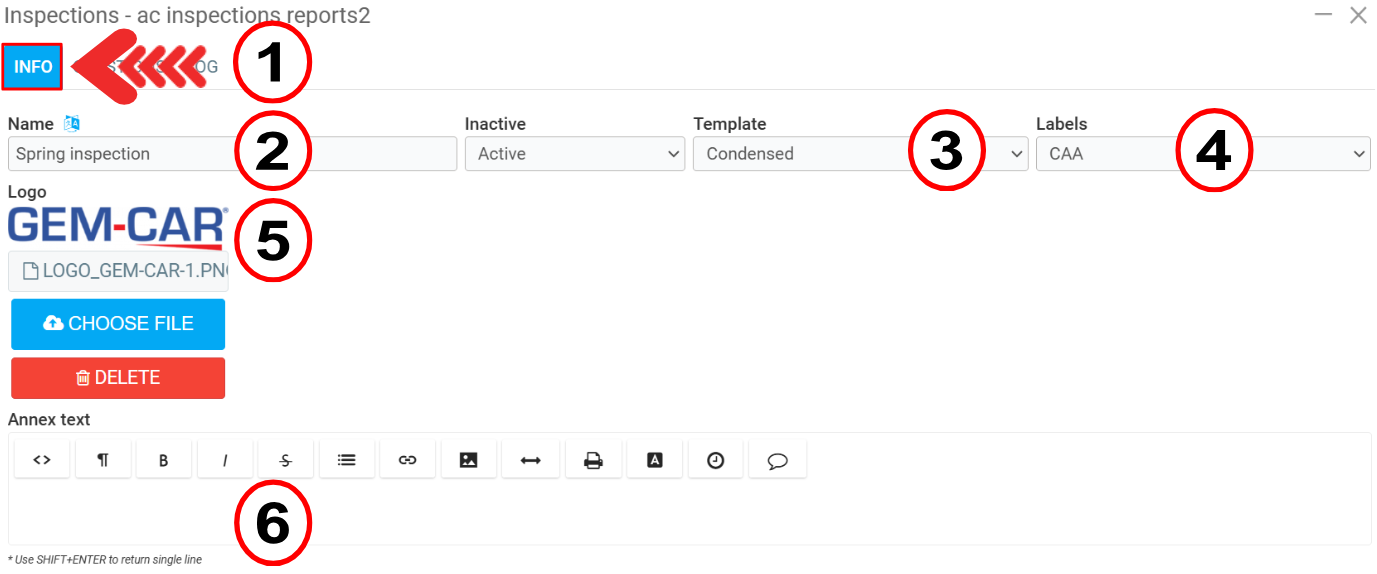
In the Info tab, you'll need to provide the following information:
- Name
- Inactive or Active
- Template
- Labels
- Logo
- Annex text
- Signature text
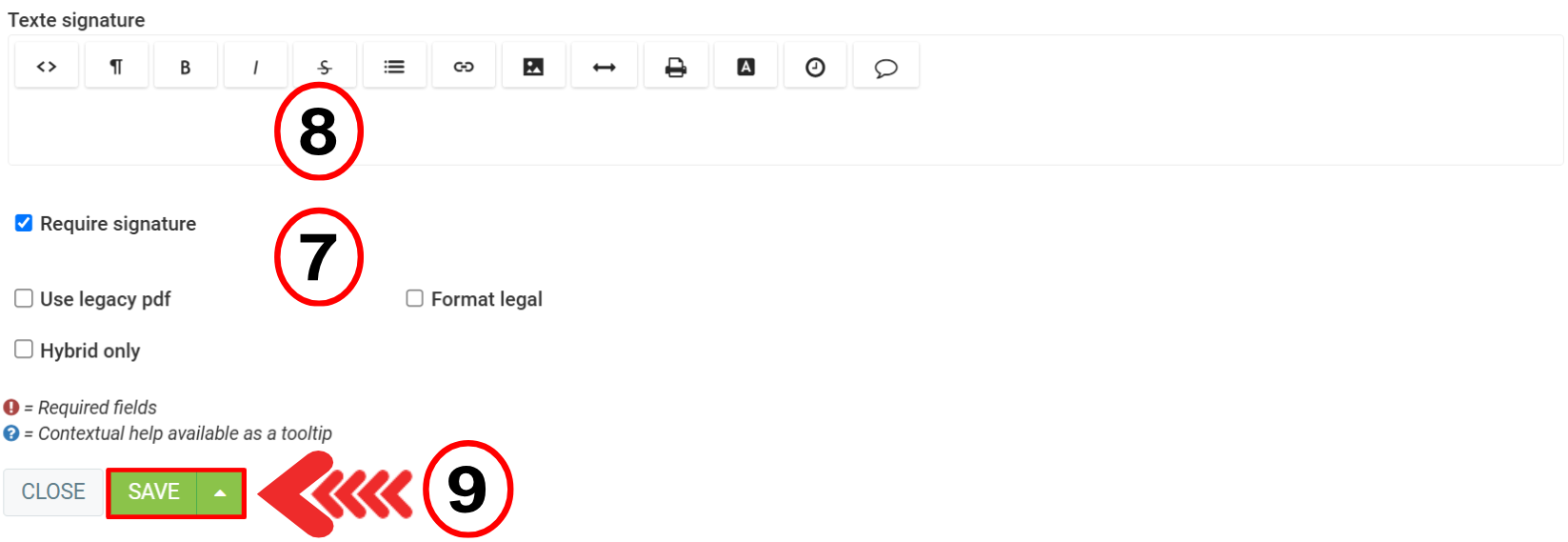
You will also need to check or uncheck the following boxes:
- Require signature
- Use legacy pdf
- Hybrid only
- Legal format
Click on Save.
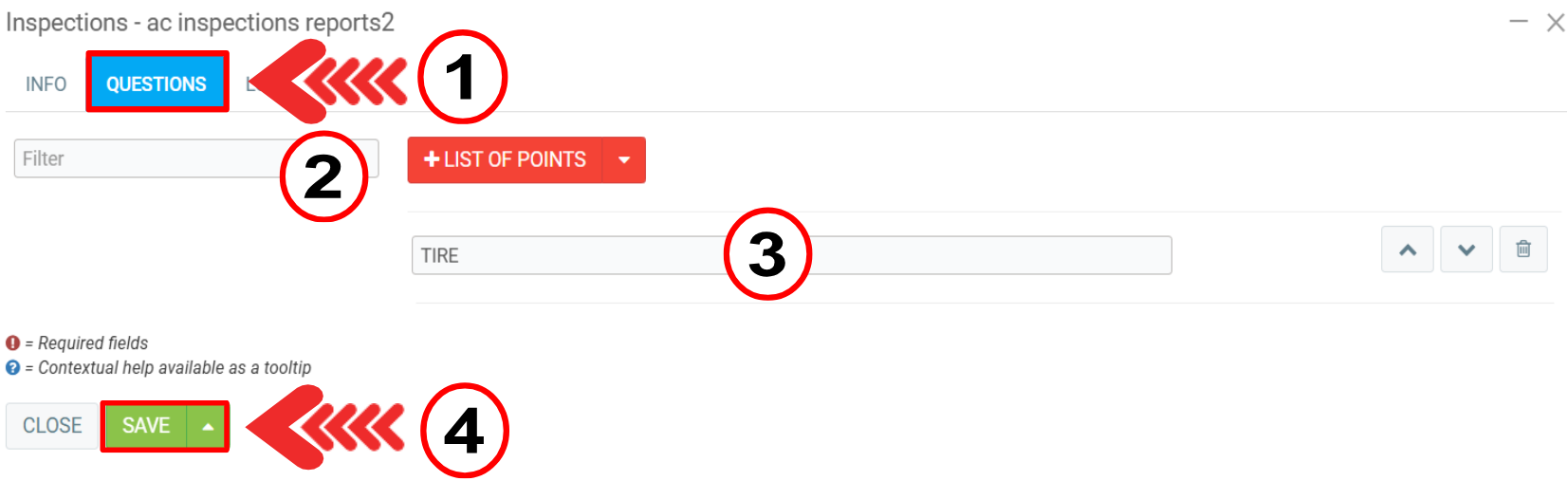
If you click on the Questions tab, you can filter and choose one of the following options:
- +List of points
- Header
- Checklist
- Additional notes
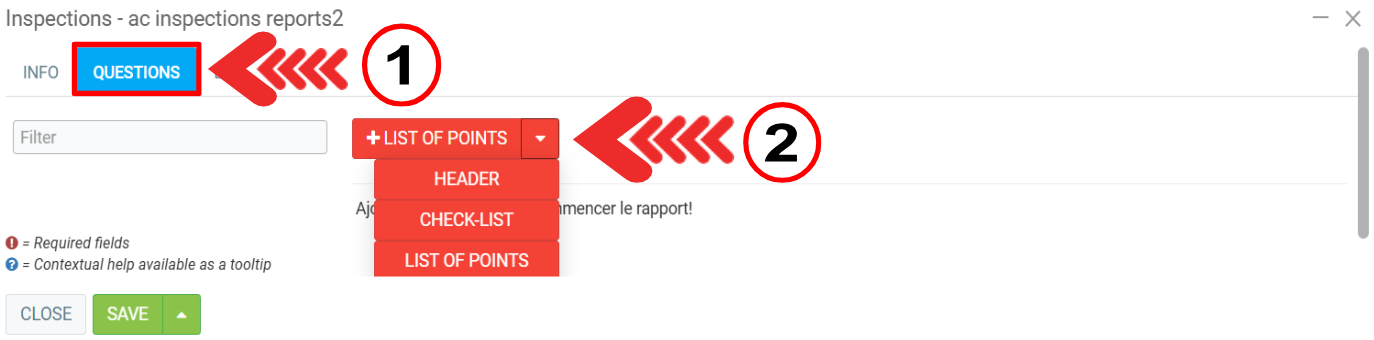
You can then add a title for this section and click on Save.
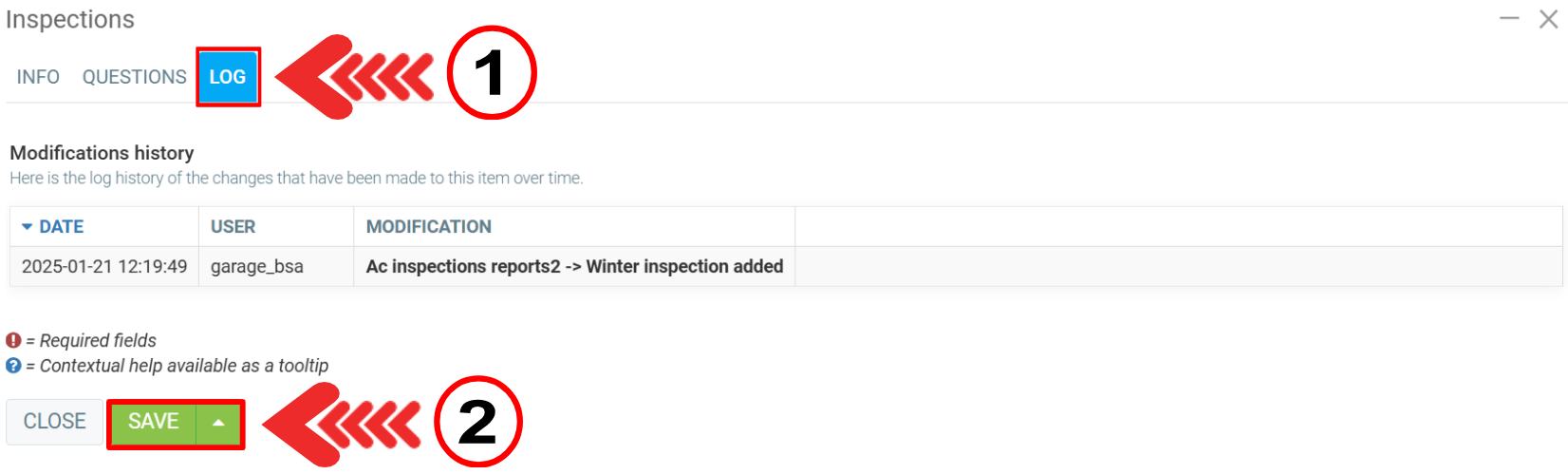
In the Log tab, you can check the modification history. Click on Save.
In the Vehicles > Inspections editor > Categories > + New tab, you can create new categories for your inspections.
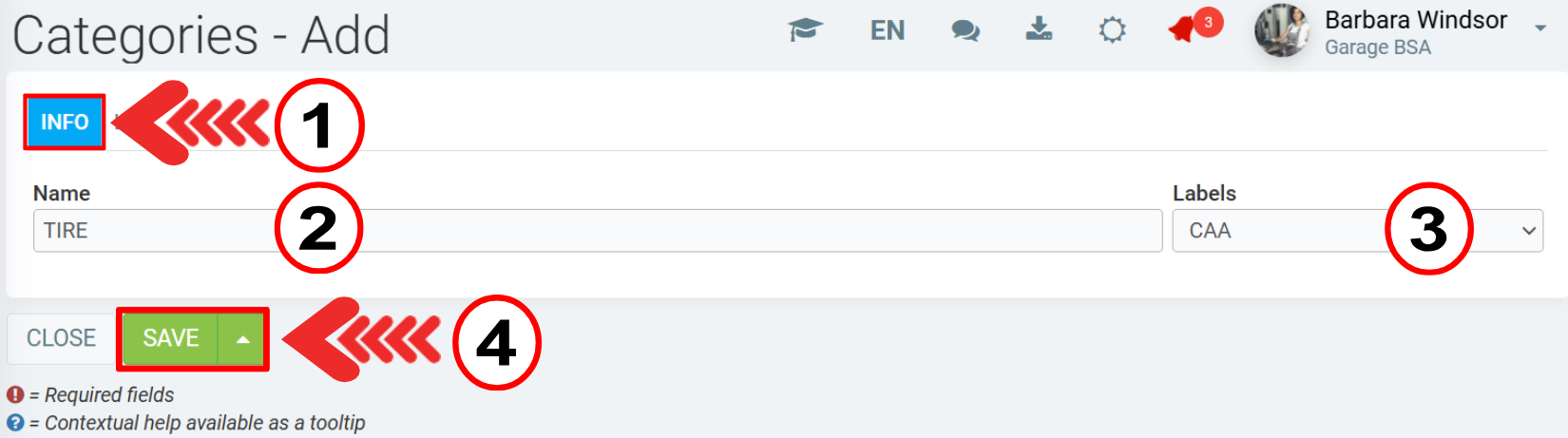
In the Info tab, enter the following information:
- Name
- Labels
Click on Save.
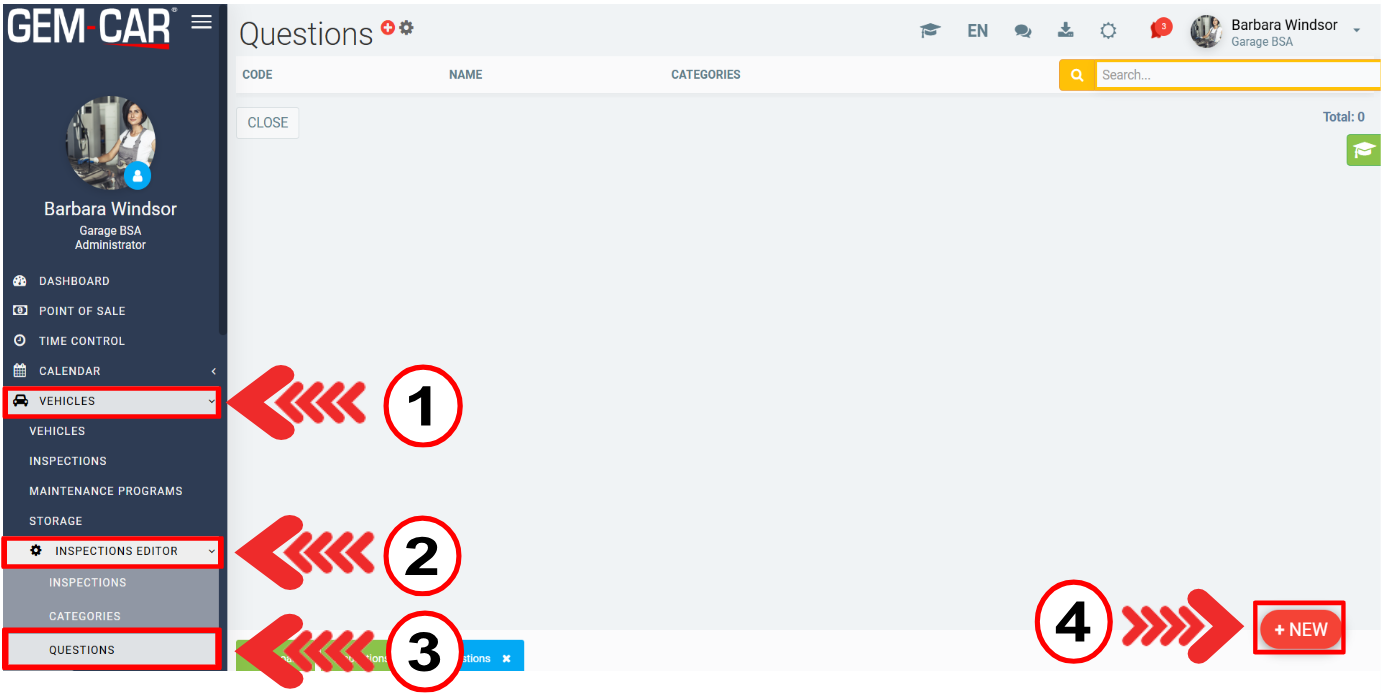
In the Vehicles > Inspections Editor > Questions > + New tab, you can create new questions for your inspections, according to your needs.
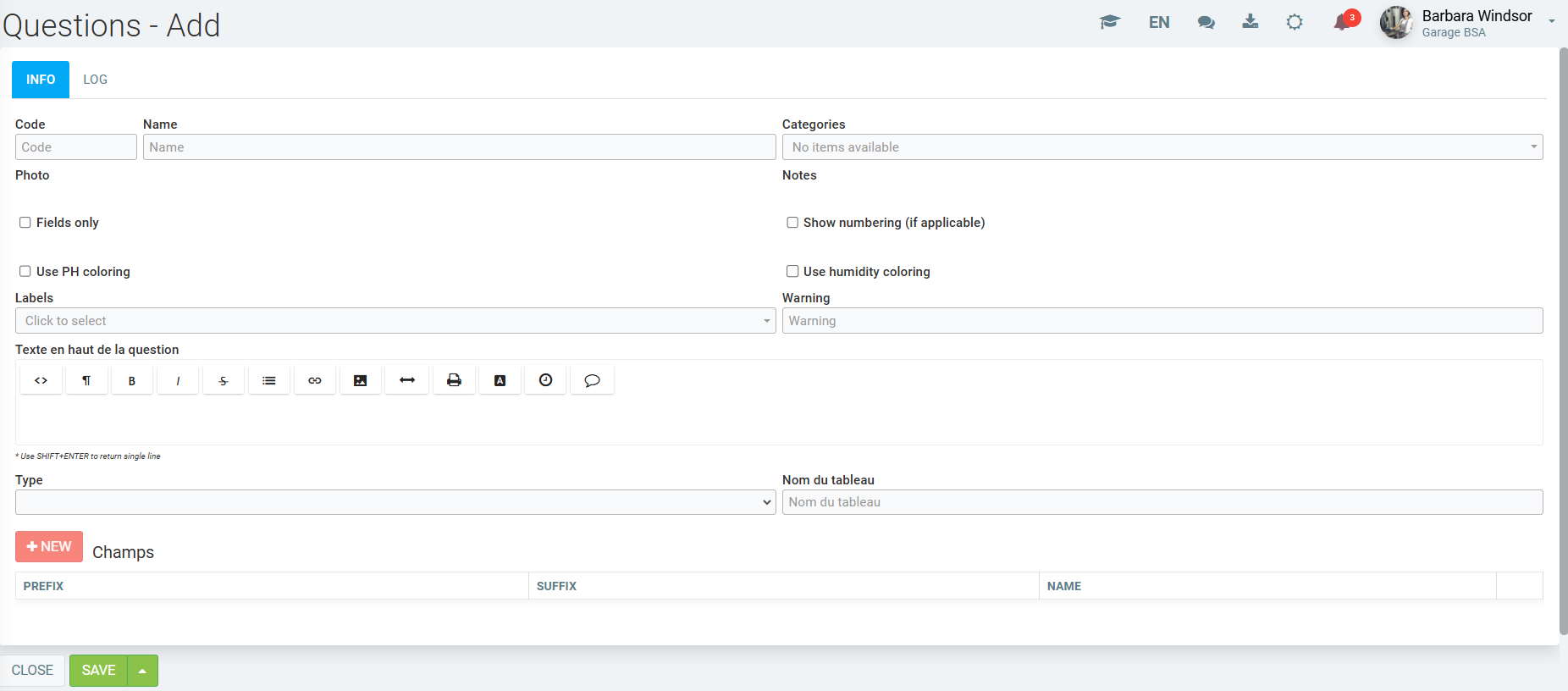
On the next page, in the Info tab, you must provide the following information:
- Code
- Name
- Categories
- Photo (check or not Fields only or Use PH coloring)
- Notes (check or not Show numbering (if applicable) or Use humidity coloring)
- Labels
- Warning
- Text at the head of the question
- Type
- Table name
- Fields
Click on Save.
Other articles on the subject:
Starting/ Opening a Digital Inspection
Completing the Digital Inspection Form and Checklist
Print or Send an Inspection Report Through Email or SMS
Configurations Required to Use the Digital Inspections Module
Posted
10 months
ago
by
Bianca da Silveira De Amorim
#2315
361 views
Edited
10 months
ago